





The following items will be deployed on April 9, 2026. Please note that this list doesn’t include other internal and regular maintenance work that BenchPrep is releasing.
New Features and Enhancements
BenchPrep Analytics
User Detail Reports: New Study Plan Report
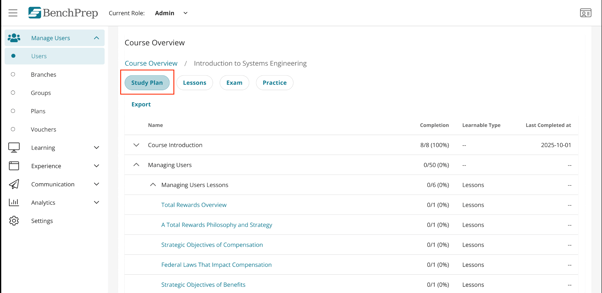
User detail reports now include a Study Plan section, providing visibility into a learner’s progress through assigned study tasks within a course.
This feature can be enabled separately, giving admins more control over the data shown in reports.
New AI Usage Report
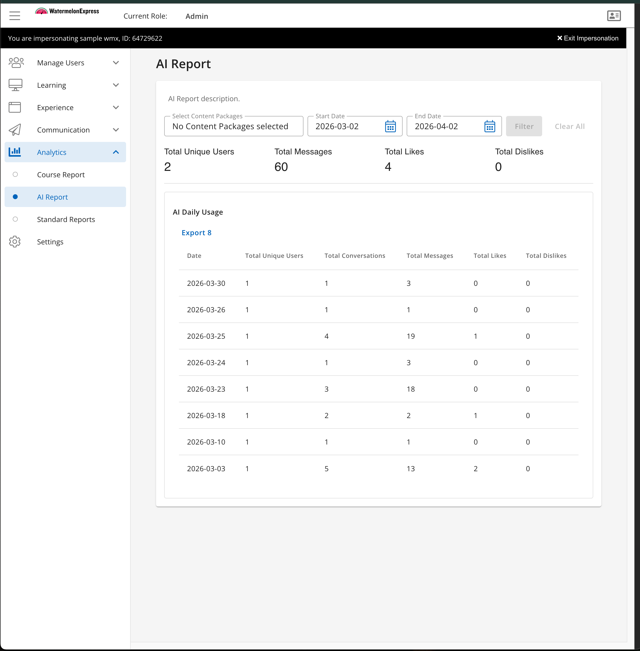
For tenants with AI Assistant enabled in courses, a new AI Usage report is now available in BenchPrep Analytics, giving visibility into how learners are interacting with the AI Assistant.
Admins can track key metrics such as total messages, unique users, conversations (used for billing), and feedback signals like likes and dislikes, along with daily usage trends.
This report helps customers better understand adoption, engagement, and overall sentiment toward their AI experience.
Learn more about AI Assistant here →
Group and Date Range Filters for Curriculum Reports
Course curriculum reports now include group and date range filters, allowing admins to analyze learner progress more precisely.
The date range filter is based on completed curriculum tasks, enabling more accurate and targeted reporting.
User Detail Reports: New Questions and Exams Metrics
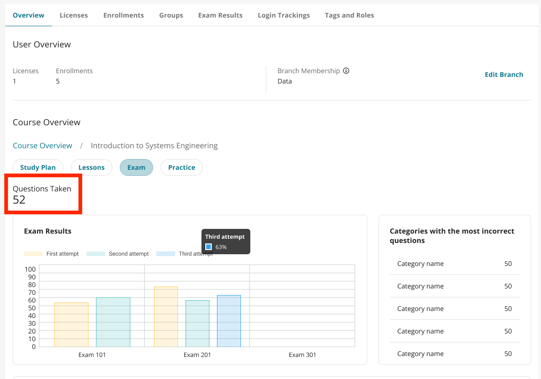
User detail reports now include “Questions Taken” in the Practice and Exam tabs, and “Exams Completed” metrics in the Exam tabs, showing learner progress against total available content.
These metrics provide clearer visibility into engagement across practice and exam activities, excluding reset activity for more accurate tracking.
New Reports Now Reflect User Time Zone
All new BenchPrep Analytics reports now display dates and times based on the user’s time zone instead of UTC.
This ensures reporting aligns more closely with how admins view and interpret learner activity, improving clarity and accuracy when analyzing data.
ExamSim
Expanded Toolbox Support for Exam Materials
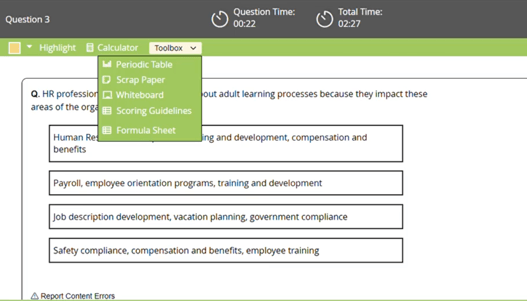
ExamSim now supports additional toolbox materials, including abbreviations, formula sheets,and scoring guidelines, bringing it closer to parity with the standard exam experience.
When enabled, learners can access these resources directly within ExamSim, improving usability and ensuring consistent access to important reference materials during exams.
Improved Answer Choice Display
Answer choices in ExamSim now consistently display A, B, C, D (or numerical) labels. Labels now appear in the correct position next to the radio buttons, ensuring answer options display clearly for learners.
Learners can also now select an answer by clicking anywhere on the answer response, not just the radio button. This improves accessibility and makes answer selection easier.
Improved Section Review Navigation
The Section Review experience in ExamSim has been updated to make navigation and exit actions more intuitive.
Question items are now clearly interactive with hyperlink styling and hover states, and updated guidance (“Click to jump to a question”) helps learners understand how to navigate. A back button has also been added, allowing learners to easily return to their previous view when they’re not ready to submit.
These improvements reduce confusion and make it easier for learners to review and continue their exam with confidence.
Learn more about ExamSim here →
Console
Improved Feature Access Organization
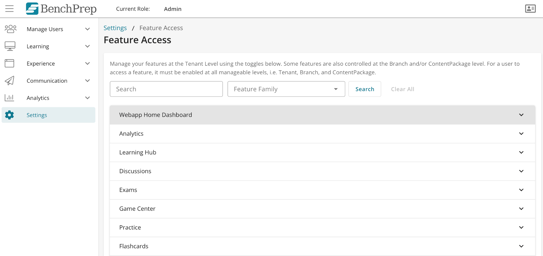
Feature Access settings have been reorganized and are now grouped by feature type, rather than listed alphabetically.
This update makes it easier for admins to find, manage, and configure feature access settings more efficiently.
Events: Edit Scheduled Event Details
Admins can now update all details of a scheduled event, including fields that were previously locked such as Streaming URL and Subject.
This eliminates the need to recreate events for minor updates, making event management faster and more flexible.
BluePrint
Update Multimedia Files Without Re-Linking Content
Admins can now replace an existing multimedia asset (video or audio) directly from the asset detail page in BluePrint.
When a file is replaced, the asset retains its original ID, so all content items referencing that asset automatically display the updated file. Any copies of the asset across cloned courses are also updated, eliminating the need to manually re-link updated content.
Selective Propagation by Content Type
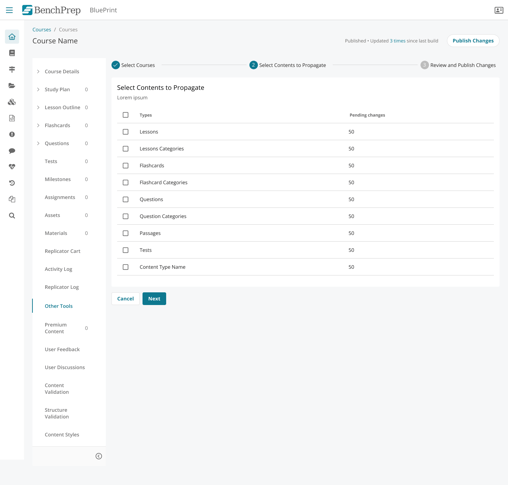
Content managers can now propagate all updated items by content type—such as lessons, questions, or assets—into selected courses in a single action.
This reduces manual selection and gives greater control over how updates are applied across courses.
Learning Hub
Custom Practice: Filtering in “Review Questions Across Categories”
The “Review All” experience in Custom Practice now supports filtering, allowing learners to quickly find and focus on specific questions across all categories in a session.
Filters match those available in category-level review and are available automatically with no setup required.
Custom Practice: Unseen Questions Preserved After Session Timeout (Study Mode)
In Study Mode, questions that are not reached before a Custom Practice session times out will no longer be marked as “seen.”
This ensures learner progress more accurately reflects the questions they actually attempted, preventing unanswered questions from being incorrectly counted as completed.
Learner Analytics: Improved Content Tag Display Names
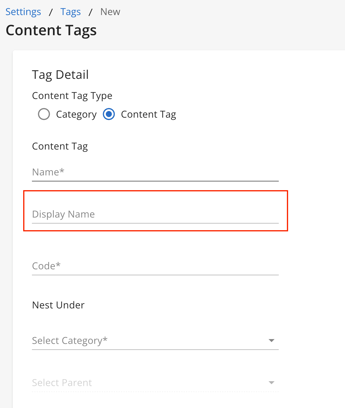
Content Tag filters in Learner Analytics now support a new Display Name field, allowing admins to define shorter, clearer labels for tags.
When a Display Name is set in the standard tags table, it will appear in the Learner Analytics filters instead of the full tag name. This field is also supported in tag creation, editing, and imports.
This improves filter usability and makes it easier to find and analyze content.
Improved Navigation from Card Details
Breadcrumb navigation has been added to the Learning Hub card details view, allowing learners to quickly return to the Dashboard or Home page without using the browser back button.
Learning Experience (WebApp)
Configurable Home Page Components
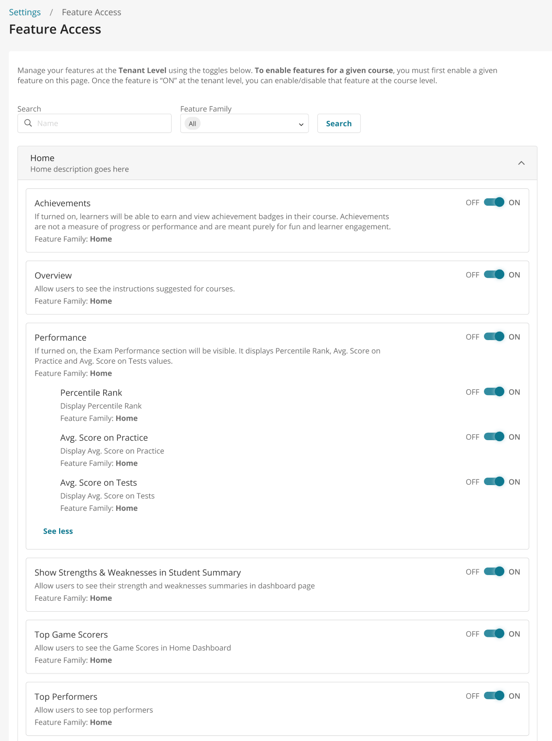
Admins can now control which components appear on the WebApp home page, including the ability to toggle individual elements on or off. Feature access settings have also been reorganized, making it easier to manage and configure home page components in one place.
This provides greater flexibility to tailor the learner experience and reduce confusion by displaying only the most relevant information.
User Experience
Login: Show/Hide Password Option
A show/hide password icon has been added to the login page, allowing users to view or mask their password as they type.
This helps reduce input errors and improves the overall login experience.


